
To ensure all your files are saved securely we encourage our users to sync their files with OneDrive.
This will create a new folder within your file explorer that is automatically synced to your personal private online cloud.
This article outlines the procedure to sync OneDrive to file explorer:
- Locate the OneDrive cloud icon in the bottom right of your system tray.
 Or
Or 
- A Blue icon indicates the user is currently logged into OneDrive. This is Good.
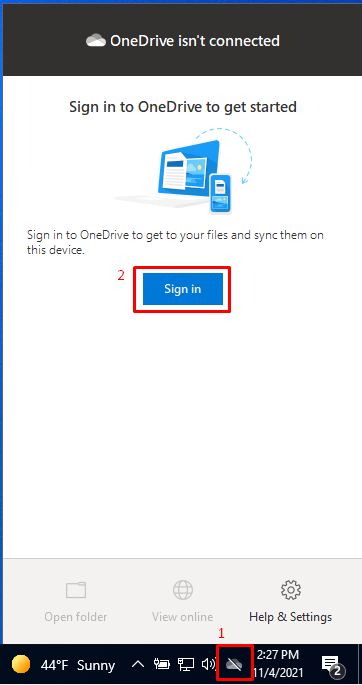
- A Grey icon with a line through it indicates that OneDrive is installed and running, but hasn't been activated by the user. To activate OneDrive, the user will need to log in.
- To login to OneDrive, click on the cloud icon in the System Tray, click the Sign In button. Enter your @grandtimber.com email and click Sign In button. Enter your network password to complete the process.
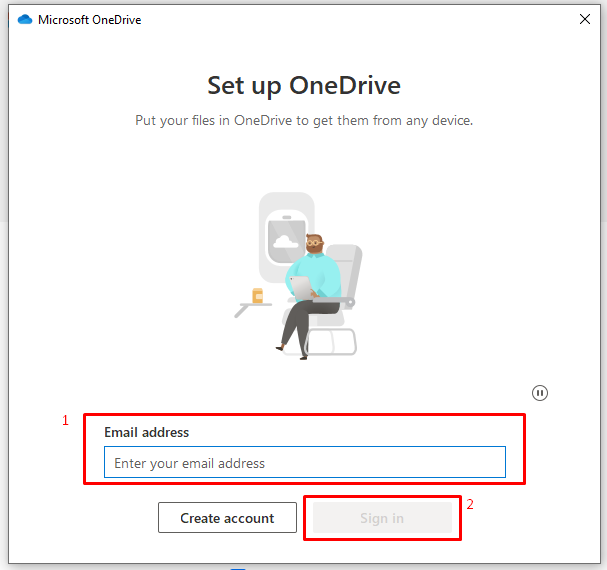
- Once the OneDrive Icon is Blue, that means the user has authenticated and is signed in to OneDrive.
- OneDrive can be accessed in several ways:
- Through the OneDrive website
- Through the OneDrive mobile app (Android or iOS)
- Through Windows Explorer (outlined below)

Comments
0 comments
Please sign in to leave a comment.